Showing posts with label Samsung Galaxy Tab. Show all posts
Showing posts with label Samsung Galaxy Tab. Show all posts
Monday, July 4, 2011
Download Samsung Galaxy Tab P1000 User Manual
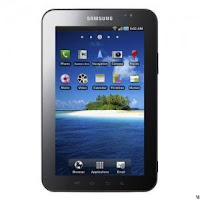
Here's the user manual for Samsung Galaxy Tab P1000, this may help you in getting to know with your newly purchased Samsung Galaxy Tabs.
All things you need to know on how to navigate and operate the Galaxy Tab from unpacking, charging, inserting sim card and memory card. As well as details to know your Tabs from accessing settings and costumizing applications, Email, text messaging, calling, web browsing, managing contacts and etc.. This also includes on how to properly handle your galaxy tabs.
Download the official "User Guide Setting, Manual, Quick Start Guide, Setup and Troubleshooting" for Samsung Galaxy Tabs GT-P1000 from Samsung Support.
ContinueReading..
All things you need to know on how to navigate and operate the Galaxy Tab from unpacking, charging, inserting sim card and memory card. As well as details to know your Tabs from accessing settings and costumizing applications, Email, text messaging, calling, web browsing, managing contacts and etc.. This also includes on how to properly handle your galaxy tabs.
Download the official "User Guide Setting, Manual, Quick Start Guide, Setup and Troubleshooting" for Samsung Galaxy Tabs GT-P1000 from Samsung Support.

Samsung Galaxy Tab User's Manual

Monday, January 24, 2011
Exporting All Contacts to SIM Card on Samsung Galaxy P1000 Tab
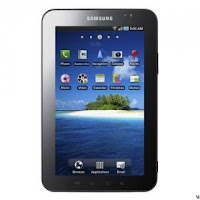
This is the simple steps on How to Export All Contacts to SIM Card on Samsung P1000 Galaxy Tab Android 2.2 Froyo. We show you how to export contacts to SIM card on Samsung Galaxy Tab. Here's the simple steps that you need to follow to relocate your contacts from your Samsung Galaxy Tab to SIM card.
1: Go to “Applications” on your “Home” Screen and select “Contacts”
2: Touch the “Menu” key and navigate to “Import/Export contacts” and select “Export to SIM card” option.
3: You may select the contacts that you want to put to your SIM card from the list of all contacts. Subsequently, you choose “Copy/Move” button at the bottom and then choose “Yes”.
After that, the Samsung P1000 Galaxy Tab will start duplicating all the selected contacts and moving it to your SIM card.
ContinueReading..

1: Go to “Applications” on your “Home” Screen and select “Contacts”
2: Touch the “Menu” key and navigate to “Import/Export contacts” and select “Export to SIM card” option.
3: You may select the contacts that you want to put to your SIM card from the list of all contacts. Subsequently, you choose “Copy/Move” button at the bottom and then choose “Yes”.
After that, the Samsung P1000 Galaxy Tab will start duplicating all the selected contacts and moving it to your SIM card.
Transfer All SIM Card Contacts to Samsung P1000 Galaxy Tab Android 2.2 Froyo
This is the steps on How to Import All the contacts from the SIM card to Samsung P1000 Galaxy Tab Android 2.2 Froyo. This is a simple tutorial on the steps of transferring SIM card contacts to your new Samsung Galaxy Tab.
Just simply,
1: Go to “Home” Screen, select “Applications” and then select “Contacts”.
2: Touch the “Menu” button, navigate “Import/Export” selection and select “Import from SIM card”
3: Touch “Menu” button and select “Copy to Phone” option.
4: Pick “Select All” > “Done”.
That's it! You have just successfully done importing all your contacts from your SIM card to your new Samsung Galaxy Tab.
ContinueReading..
Just simply,
1: Go to “Home” Screen, select “Applications” and then select “Contacts”.
2: Touch the “Menu” button, navigate “Import/Export” selection and select “Import from SIM card”
3: Touch “Menu” button and select “Copy to Phone” option.
4: Pick “Select All” > “Done”.
Subscribe to:
Comments (Atom)