Showing posts with label Connect to PC. Show all posts
Showing posts with label Connect to PC. Show all posts
Wednesday, November 16, 2011
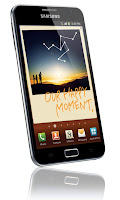
How to connect the Samsung Galaxy Note to PC or Laptop
It's so easy to connect your Samsung Galaxy Note to your PC using a USB cable if you want to browse your data files that has been stored on your phone's microSD card, synchronize your contacts or accounts using Samsung Kies, transferring files such as photos, videos, ringtones etc. To do this you may need to have a kies installed on your PC so that the desired USB driver for your Galaxy Note will be installed as well. You can download Kies program from samsung website. www.samsung.com/kies
Here's how to connect the Galaxy Note to PC and access the memory card. (a removable disk file directory will appear on your PC, separate from internal memory of your phone.
 - From idle mode, select Application list.
- Then tap on Settings
- Tap Wireless and Network
- Select USB Utilities
- then select Connect Mass Storage to PC.
Then connect your Galaxy Note to PC with the USB cable or multifunction jack
When connected Touch USB connected or Turn on USB storage
- A USB icon will appear in the top left Notifications area of the screen.
- On the PC, go to My Computer then locate the newly file drive directory that appears as your Galaxy Note mass storage. You can now have the access to browse, sync, copy or transfer files that you want from your Galaxy Note microSD card to your PC or laptop.
ContinueReading..
Here's how to connect the Galaxy Note to PC and access the memory card. (a removable disk file directory will appear on your PC, separate from internal memory of your phone.

- Then tap on Settings
- Tap Wireless and Network
- Select USB Utilities
- then select Connect Mass Storage to PC.
Then connect your Galaxy Note to PC with the USB cable or multifunction jack
When connected Touch USB connected or Turn on USB storage
- A USB icon will appear in the top left Notifications area of the screen.
- On the PC, go to My Computer then locate the newly file drive directory that appears as your Galaxy Note mass storage. You can now have the access to browse, sync, copy or transfer files that you want from your Galaxy Note microSD card to your PC or laptop.

Saturday, July 23, 2011
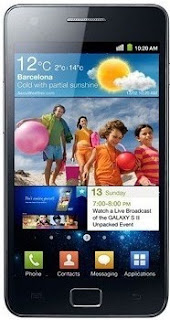
How to Connect the Samsung Galaxy S2/SII I9100 to PC via USB
Many users who just recently bought Samsung Galaxy S2 I9100 struggling an issue when tried to connect the phone to the PC to access the SD card though, and somehow it didn’t really work. An error message appears "Android MTP Failed!".
Some few tips below might help you to the task and managed to access the phone’s internal SD card on PC. Just ensure that you have already installed necessary drivers for your Samsung Galaxy S2 or install KIES on your PC.
Here's how,
-Enable usb debugging from Menu > Settings > Applications
-return to home screen
-plug usb cable in
-pull down status bar
-press ‘ connect usb storage’ button
or try this method:
Alternatively, without USB debugging enabled
Go to Settings > Wireless & Network > USB utilities and click the button > then (and ONLY then) plug in USB cable
Hope this helps...
Some few tips below might help you to the task and managed to access the phone’s internal SD card on PC. Just ensure that you have already installed necessary drivers for your Samsung Galaxy S2 or install KIES on your PC.

Here's how,
-Enable usb debugging from Menu > Settings > Applications
-return to home screen
-plug usb cable in
-pull down status bar
-press ‘ connect usb storage’ button
or try this method:
Alternatively, without USB debugging enabled
Go to Settings > Wireless & Network > USB utilities and click the button > then (and ONLY then) plug in USB cable
Hope this helps...
Subscribe to:
Posts (Atom)