Saturday, July 16, 2011
How to take screenshots on Samsung Galaxy S2/S II I9100
Here's a quick tip on how to capture or take a screenshot from your Samsung Galaxy S II. Most android phones could only capture what was on-screen using tools, or applications and many required root access first. The Samsung Galaxy S II has a Built-in screen capture, so taking screenshot is too easy and doesn't need any rooting or 3rd-party application to install.
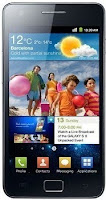
Here is how simply you can do it: PRESS AND HOLD THE HOME BUTTON - THEN PRESS THE POWER BUTTON. So, press and hold home, then a millisecond later hit the power button. Works flawlessly every time. The image will then saved in your gallery files.
ContinueReading..

Here is how simply you can do it: PRESS AND HOLD THE HOME BUTTON - THEN PRESS THE POWER BUTTON. So, press and hold home, then a millisecond later hit the power button. Works flawlessly every time. The image will then saved in your gallery files.
Update:
The ICS already released, taking screenshots for Galaxy S2 runs with Ice Cream sandwich is change to Volume Down and Power Buttons..Press and Hold The VOLUME Down and POWER BUTTON simultaneously to take a screenshots.
Wednesday, July 13, 2011
Download Samsung Galaxy Fit S5670 User Manual
If you have purchased a Samsung Galaxy Fit S5670 and wanted to know how to operate and navigate to make use of it, this user manual will help you guide through while tweaking and getting familiar with your Samsung Galaxy Fit S5670.
You will still need this user manual because sometimes you will use other features that you will only find some tips on it. Just grab a copy of your Galaxy Fit User Manual from the links below and enjoy getting used of your phone.
Grab your Galaxy Fit User Guide from Samsung Official Page.

ContinueReading..
You will still need this user manual because sometimes you will use other features that you will only find some tips on it. Just grab a copy of your Galaxy Fit User Manual from the links below and enjoy getting used of your phone.
Grab your Galaxy Fit User Guide from Samsung Official Page.

Samsung Galaxy Fit GT-S5670 User Manual
Tuesday, July 12, 2011
How to Set a Music /Ringtone Message Notification on Samsung Galaxy Ace S5830
Here's a simple guide on how to set a favorite songs, tones to your message alerts on your Samsung Galaxy Ace. All you have to do is connect your Samsung Galaxy Ace to your computer or laptop via USB cable and then select "connection type" and get access to storage memory card.
Here's how to connect Galaxy Ace into Mass Storage Mode Option:
- On Main Home Screen tap Menu > Settings > Application
- Enable USB Debugging
- Return to Home Screen
- Then plug the USB cable into your Galaxy S2
- Pull down status bar
- Press ' Connect USB Storage' button
Aternative way without USB Debugging
- Go to Settings > Wireless & Network
- USB utilities and click the button >
- then plug in USB cable
 Now after you have successfully connected your Galaxy Ace, browse to your mass storage
then find the folder "Notifications", if its not on there, create a new folder and simply renamed it "Notifications".
>SDCARD/ MEDIA/ AUDIO/ NOTIFICATIONS
Then grab a copy music files you wanted from your computer and paste into that folder "Notifications". Once finishes, disconnect your Galaxy Ace from the computer. Then you can set that music files as your message tone.
- Go to Message/Inbox icon located at the bottom of your Samsung Galaxy Ace screen
- In the Message/Inbox Settings simply choose the file that you've copied as your message ringtone
If you already have a music files stored on your Samsung Galaxy Ace, do this steps below:
- Go to "My Files" then copy that mp3 music file you like to use as your messages ringtone.
( Just tap and hold that music file then you can choose either to copy or move that music file)
- Next, paste that music file in your media folder > SDCARD/ MEDIA/ AUDIO/ NOTIFICATIONS
- Go to Message/Inbox icon located at the bottom of your Samsung Galaxy Ace screen
- In the Message/Inbox Settings simply choose the music file that you've copied as your message ringtone
If you have a problem about the volume loudness, this sometimes happens that your custom ringtone volume is too low compared to the preset ringtone on your Galaxy Ace which as much louder.
You can try using this program, MP3GAIN, to boost up maximized the volume of your mp3's decibels.
http://mp3gain.sourceforge.net/download.php
Or this app from Android Market..Volume+ (Sound Boost)
currently using this app for my boosted up mp3s using MP3GAIN.
But works only on Gingerbread..
https://market.android.com/details?id=com.TEST.android.lvh&feature=search_result
ContinueReading..
Here's how to connect Galaxy Ace into Mass Storage Mode Option:
- On Main Home Screen tap Menu > Settings > Application
- Enable USB Debugging
- Return to Home Screen
- Then plug the USB cable into your Galaxy S2
- Pull down status bar
- Press ' Connect USB Storage' button
Aternative way without USB Debugging
- Go to Settings > Wireless & Network
- USB utilities and click the button >
- then plug in USB cable
then find the folder "Notifications", if its not on there, create a new folder and simply renamed it "Notifications".
>SDCARD/ MEDIA/ AUDIO/ NOTIFICATIONS
Then grab a copy music files you wanted from your computer and paste into that folder "Notifications". Once finishes, disconnect your Galaxy Ace from the computer. Then you can set that music files as your message tone.
- Go to Message/Inbox icon located at the bottom of your Samsung Galaxy Ace screen
- In the Message/Inbox Settings simply choose the file that you've copied as your message ringtone
If you already have a music files stored on your Samsung Galaxy Ace, do this steps below:
- Go to "My Files" then copy that mp3 music file you like to use as your messages ringtone.
( Just tap and hold that music file then you can choose either to copy or move that music file)
- Next, paste that music file in your media folder > SDCARD/ MEDIA/ AUDIO/ NOTIFICATIONS
- Go to Message/Inbox icon located at the bottom of your Samsung Galaxy Ace screen
- In the Message/Inbox Settings simply choose the music file that you've copied as your message ringtone
If you have a problem about the volume loudness, this sometimes happens that your custom ringtone volume is too low compared to the preset ringtone on your Galaxy Ace which as much louder.
You can try using this program, MP3GAIN, to boost up maximized the volume of your mp3's decibels.
http://mp3gain.sourceforge.net/download.php
Or this app from Android Market..Volume+ (Sound Boost)
currently using this app for my boosted up mp3s using MP3GAIN.
But works only on Gingerbread..
https://market.android.com/details?id=com.TEST.android.lvh&feature=search_result
Monday, July 11, 2011
How to Remove and Change Gmail Account on Android Market without doing Factory Reset from your Android Phone
When tried to remove (settings->accounts & sync) the gmail account that was used during the initial phone setup, it erase almost anything on your phone, like contacts, photos, messages etc, and prompted this message ->

1. Download the application Root Explorer from Android Market
2. Once already downloaded or installed the Root Explorer,
Explore to /data/system/ and find this file : accounts.db
3. Delete that file (accounts.db)
4. Reboot your Android device.
5. Then you can register another account again.
ContinueReading..
Remove accountYou can simply change, erase and register new or another Gmail account, but you have to do a Factory Reset. To do a factory reset of your phone will make you set it up again from scratch. But I have a simple tips how to remove or change your GMail account on Android Market without doing a Factory reset.
This account is required by some applications. You can only delete it by resetting the phone to factory defaults.
1. Download the application Root Explorer from Android Market
2. Once already downloaded or installed the Root Explorer,
Explore to /data/system/ and find this file : accounts.db
3. Delete that file (accounts.db)
4. Reboot your Android device.
5. Then you can register another account again.
How to Add, Remove or Delete Facebook , Exchange and Gmail accounts on Samsung Galaxy S II I9100
Here's a simple guide if you want to add and or remove any network accounts on your Samsung Galaxy S II. This may help you remove old Email,Gmail, Facebook account or multiple accounts that you no longer use on Samsung Galaxy S II.
Adding an account on Samsung Galaxy S II:
1. Open Settings, the tap on the Accounts & sync selection

2. Tap on Add account

3. Select the type of account to add (Microsoft Exchange, Facebook and Google are available by default)
4. Follow the on-screen instructions to configure your account (depending on account type, you will be asked to select what kind of data to sync to your device)
5. When complete, the account is added to the list in the Accounts & sync section and data will begin synchronizing to your device
Removing an account on Samsung Galaxy S II:
1. Open Settings, then tap on the Accounts & sync selection
2. Select the desire account you want to remove or delete
3. Then Tap Remove account

 4. A pop-up message appear: Do you really want to remove this account? removing it will also delete all of its messages, contacts, and other data from phone.
proceed?
Just confirm that you want to remove the account by tapping on Remove account or tap on Cancel if you selected the wrong account
Remove account
5. Your account will now be deleted
ContinueReading..
Adding an account on Samsung Galaxy S II:
1. Open Settings, the tap on the Accounts & sync selection
2. Tap on Add account
3. Select the type of account to add (Microsoft Exchange, Facebook and Google are available by default)
4. Follow the on-screen instructions to configure your account (depending on account type, you will be asked to select what kind of data to sync to your device)
5. When complete, the account is added to the list in the Accounts & sync section and data will begin synchronizing to your device
Removing an account on Samsung Galaxy S II:
1. Open Settings, then tap on the Accounts & sync selection
2. Select the desire account you want to remove or delete
3. Then Tap Remove account
proceed?
Just confirm that you want to remove the account by tapping on Remove account or tap on Cancel if you selected the wrong account
Remove account
5. Your account will now be deleted
Friday, July 8, 2011
Download Samsung Galaxy S II I9100 User manual and quick start guide
If you purchased and got a Samsung Galaxy S II in hand you need this user manual for your device to help you navigate its features and getting to know it with a full access. This user manual is your guide to how properly handle you Samsung Galaxy S II, navigating messages, SMS, calling, email, browsing etc..
This also includes safety tips and troubleshooting instructions.

Here's the Samsung Galaxy S II User manual and quick start guides from the Samsung's website.
Samsung_Galaxy_S_II_GT-I9100_Quick Start Guide & User_Manual.pdf
ContinueReading..
This also includes safety tips and troubleshooting instructions.

Here's the Samsung Galaxy S II User manual and quick start guides from the Samsung's website.
Samsung_Galaxy_S_II_GT-I9100_Quick Start Guide & User_Manual.pdf
How to boost or increase earphone speaker volume on Samsung Galaxy S II I9100
If you are not satisfied and having problem on Samsung Galaxy S II speaker volume like its very low even you've already set to its maximum volume. Many users experiencing and been complaining about speaker volume like a very low on phone calls,earphone, headset and in the car using AUX.
This tips might help you solve the problem, give these a try just send us a feedback whether it works for you or not:
A) Enter service mode by typing below code on your dialer :
*#*#197328640#*#*
click the following:
[5] AUDIO
[1] NB (VOICE CALL)
Choose Handset, headset, Speaker (which ever you want higher volume)
[1] VOLUME
[1] SRC Speech RX Volume
Change default values and higher the values any number of your choosing, here is an example:
[0]0_lvl : 68
[1]1_lvl : 72
[2]2_lvl : 76
[3]3_lvl : 80
[4]4_lvl : 84
[5]5_lvl : 88 Higher these values to until hear volume improvement.
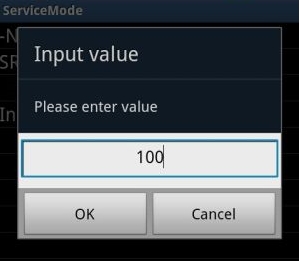
Can also edit the values from:
[2]DST I2S1 TX Volume
[3]SRC I2S1 RX Volume: 100
[4]DST Speech TX Volume: 94
This Samsung volume setting, worked for several people but sadly only worked 2 times for me and values keep resetting for me (doesn't mean for you, so give it a try) Also this is based on STOCK firmware.
B) the second thing you might to try is app called Volume+:
http://androidaudiohacks.com/home/vo...bread/download
This app guarantees it higher the volume without the need of touching its default settings, BUT huge drawback it highers everything: Headset, speaker and Bluetooth EXCEPT HANDSET which is the most important
(I also downloaded many volume increase apps, but Volume+ was the only one got the job done for everything but handset)
C) Lastly get GOOGLE VOICE app (create a GV account if you don't have one)
https://market.android.com/details?i...=search_result
just by installing Google and logging on, every time you make a call, your calls get forwarded through Google voice and volume levels become acceptable in ALL HANDSET, HEADSET, SPEAKER, BLUETOOTH (just like phone should of have been) (this what i personally use fix my volume issues)
If the above tips doesn't work for you, the best way is to complain it to your Samsung Galaxy S II provider.
ContinueReading..
This tips might help you solve the problem, give these a try just send us a feedback whether it works for you or not:
A) Enter service mode by typing below code on your dialer :
*#*#197328640#*#*
click the following:
[5] AUDIO
[1] NB (VOICE CALL)
Choose Handset, headset, Speaker (which ever you want higher volume)
[1] VOLUME
[1] SRC Speech RX Volume
Change default values and higher the values any number of your choosing, here is an example:
[0]0_lvl : 68
[1]1_lvl : 72
[2]2_lvl : 76
[3]3_lvl : 80
[4]4_lvl : 84
[5]5_lvl : 88 Higher these values to until hear volume improvement.
Can also edit the values from:
[2]DST I2S1 TX Volume
[3]SRC I2S1 RX Volume: 100
[4]DST Speech TX Volume: 94
This Samsung volume setting, worked for several people but sadly only worked 2 times for me and values keep resetting for me (doesn't mean for you, so give it a try) Also this is based on STOCK firmware.
B) the second thing you might to try is app called Volume+:
http://androidaudiohacks.com/home/vo...bread/download
This app guarantees it higher the volume without the need of touching its default settings, BUT huge drawback it highers everything: Headset, speaker and Bluetooth EXCEPT HANDSET which is the most important
(I also downloaded many volume increase apps, but Volume+ was the only one got the job done for everything but handset)
C) Lastly get GOOGLE VOICE app (create a GV account if you don't have one)
https://market.android.com/details?i...=search_result
just by installing Google and logging on, every time you make a call, your calls get forwarded through Google voice and volume levels become acceptable in ALL HANDSET, HEADSET, SPEAKER, BLUETOOTH (just like phone should of have been) (this what i personally use fix my volume issues)
If the above tips doesn't work for you, the best way is to complain it to your Samsung Galaxy S II provider.
Subscribe to:
Posts (Atom)