Friday, July 8, 2011
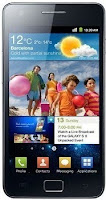
How to upgrade official firmware on Samsung Galaxy S II I9100
If you are a new user of Samsung Galaxy S II I9100 and you wanted to upgrade your phone's firmware to any latest updates, all you need is a personal computer or laptop and install a software program called KIES, you can download it via Samsung official support.
You can't do it over the air or OTA like any other android smartphones by using software update option, Yes you can see a software update option in phone under settings and you need to specify your samsung account details as well.. but as of now its doesn't work on Samsung Galaxy S II I9100.
Aside from Kies update you can also manually upgrade the device by a way of using ODIN downloader tool and an original firmware.
 This method is not recommended for beginners since it will cause some problems and sometimes mess up the phone, called bricking.
If you want to learn by this method you may visit XDA-developer, many advance users in there shares a useful tweaks and tips about Samsung Galaxy S II I900 firmware.
ContinueReading..
You can't do it over the air or OTA like any other android smartphones by using software update option, Yes you can see a software update option in phone under settings and you need to specify your samsung account details as well.. but as of now its doesn't work on Samsung Galaxy S II I9100.
Aside from Kies update you can also manually upgrade the device by a way of using ODIN downloader tool and an original firmware.

If you want to learn by this method you may visit XDA-developer, many advance users in there shares a useful tweaks and tips about Samsung Galaxy S II I900 firmware.

Thursday, July 7, 2011
How to Set a Custom Message Notification Music /Ringtone on Samsung Galaxy S II
Here's a simple guide on how to set a custom ringtone to your message alerts on your Samsung Galaxy S II. If you'll notice that you can't find an option to set what you desired music or tone to set it as a message notification alert.
Here's how to do it:
Connect your Samsung Galaxy S II to your computer or laptop and select "connection type" and get access to storage memory card. If you are having trouble on connection see the guide here.
Now after you have successfully connected you galaxy S II, browse to your mass storage then find the folder "Notifications", if its not on there, create a new folder and named it "Notifications".
Then grab a copy music files you wanted from your computer into that newly created folder "notifications". Once finishes, disconnect your Galaxy S II from the computer. Then you can set that music files as your message tone.
- Go back to the idle screen. Press the Home key.
- Then open the application list.
- Select Messaging.
- Then press on the Menu android-menu-key key.
- Then tap on Settings.
- Tap on the Notifications checkbox and ensure that the checkbox is checked.
- Tap on Select ringtone.
- On the popup select the ringtone you desire.
Here's how to make a custom notification message ringtone on the Samsung Galaxy S2 when you already have a music files stored or saved on your phone.
- Go to Menu
- My files, media
- Then make a map called 'Audio'.
- Open that map, and there you make another map called 'Notifications'.
- Move your mp3/sound/song/ringtone in that map.
- Now you can choose it in settings, sound, notification ringtone.
You can do the same thing with calling ringtones and alarms.
For that, make a map called 'Ringtones' or 'Alarms' in the 'Audio' map. So in Audio will be three maps, Ringtones, Alarms and Notifications.
ContinueReading..
Here's how to do it:
Connect your Samsung Galaxy S II to your computer or laptop and select "connection type" and get access to storage memory card. If you are having trouble on connection see the guide here.
Now after you have successfully connected you galaxy S II, browse to your mass storage then find the folder "Notifications", if its not on there, create a new folder and named it "Notifications".
Then grab a copy music files you wanted from your computer into that newly created folder "notifications". Once finishes, disconnect your Galaxy S II from the computer. Then you can set that music files as your message tone.
- Go back to the idle screen. Press the Home key.
- Then open the application list.
- Select Messaging.
- Then press on the Menu android-menu-key key.
- Then tap on Settings.
- Tap on the Notifications checkbox and ensure that the checkbox is checked.
- Tap on Select ringtone.
- On the popup select the ringtone you desire.
Here's how to make a custom notification message ringtone on the Samsung Galaxy S2 when you already have a music files stored or saved on your phone.
- My files, media
- Then make a map called 'Audio'.
- Open that map, and there you make another map called 'Notifications'.
- Move your mp3/sound/song/ringtone in that map.
- Now you can choose it in settings, sound, notification ringtone.
You can do the same thing with calling ringtones and alarms.
For that, make a map called 'Ringtones' or 'Alarms' in the 'Audio' map. So in Audio will be three maps, Ringtones, Alarms and Notifications.
Tuesday, July 5, 2011
Tricks: How to Disable Default System Applications on HTC Sensation
Many users have been looking answers on how to disable some applications on their HTC Sensation that don't suites their likings. Since advance users knows it that it is impossible to remove, delete, uninstall and disable those system bloatwares without rooting the phone. We found some guide over XDA-developer by way of temporarily rooting HTC Sensation will get access to somewhat disable the said system default applications or bloatwares.
 Note: this guide is for advance users only that may know some tweaks about Android devices.
You may find the instruction here on this thread over XDA-developer.
ContinueReading..

You may find the instruction here on this thread over XDA-developer.
Monday, July 4, 2011
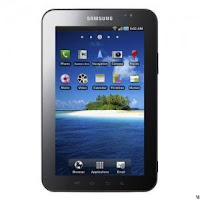
Download Samsung Galaxy Tab P1000 User Manual
Here's the user manual for Samsung Galaxy Tab P1000, this may help you in getting to know with your newly purchased Samsung Galaxy Tabs.
All things you need to know on how to navigate and operate the Galaxy Tab from unpacking, charging, inserting sim card and memory card. As well as details to know your Tabs from accessing settings and costumizing applications, Email, text messaging, calling, web browsing, managing contacts and etc.. This also includes on how to properly handle your galaxy tabs.
Download the official "User Guide Setting, Manual, Quick Start Guide, Setup and Troubleshooting" for Samsung Galaxy Tabs GT-P1000 from Samsung Support.
ContinueReading..
All things you need to know on how to navigate and operate the Galaxy Tab from unpacking, charging, inserting sim card and memory card. As well as details to know your Tabs from accessing settings and costumizing applications, Email, text messaging, calling, web browsing, managing contacts and etc.. This also includes on how to properly handle your galaxy tabs.
Download the official "User Guide Setting, Manual, Quick Start Guide, Setup and Troubleshooting" for Samsung Galaxy Tabs GT-P1000 from Samsung Support.

Samsung Galaxy Tab User's Manual
Saturday, July 2, 2011
Download Samsung Galaxy Mini S5570 User Manual
Get the information on how to navigate and operate your Samsung Galaxy Mini S5570 with its own users manual. This manual is packed all available infos in getting to know your galaxy Mini GT-S5570 and will help you to make use of your newly purchased Galaxy Mini.
Contents and details of this Samsung galaxy Mini S5570 users manual are guides of following:
- unpacking
- Installing Sim Card
- Installing battery
- Installing Memory Card
- Turning the device On and Off
- Idle screen navigation
- Touch Screen navigation
- Costumizing
- Application Accessing
And a lot more like:
Calling messaging, Downloading, Entertainment,Web browsing etc. this also includes safety precautions on how to properly handle you Samsung galaxy mini and troubleshooting tips to fix any unwanted issues.

Download Free Samsung Galaxy Mini user manual
For Orange Carrier UK, here you can download Orange Galaxy Mini user manual.
The Samsung UK official support page here The Samsung Galaxy Mini (S5570)
ContinueReading..
Contents and details of this Samsung galaxy Mini S5570 users manual are guides of following:
- unpacking
- Installing Sim Card
- Installing battery
- Installing Memory Card
- Turning the device On and Off
- Idle screen navigation
- Touch Screen navigation
- Costumizing
- Application Accessing
And a lot more like:
Calling messaging, Downloading, Entertainment,Web browsing etc. this also includes safety precautions on how to properly handle you Samsung galaxy mini and troubleshooting tips to fix any unwanted issues.

Download Free Samsung Galaxy Mini user manual
For Orange Carrier UK, here you can download Orange Galaxy Mini user manual.
The Samsung UK official support page here The Samsung Galaxy Mini (S5570)
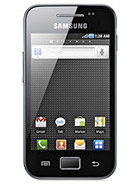
How to Delete/Remove Applications on Samsung Galaxy Ace S5830
If you ever wanted to remove some pre-installed applications on your Samsung Galaxy Ace which you found it like some kinda weird and rubbish or doesn't suites your likings, you can remove it with just a simple steps below. The pre-installed applications on your Samsung Galaxy Ace cannot be simply removed because it's already in there and already launched by default firmware when you purchased it.
This tricks below will help you solved out of this problem. This will not just removed any applications you dislikes but unlocked your phone to a wide variety of applications what ever you wanted from android market. This process is called rooting, you may need to root your Galaxy Ace first before you can get access to your phone and then delete that applications you do not want anymore.
Follow the procedure over at XDA on how to Root your Samsung Galaxy ACE, It's been easy and quite simple. But take Note Rooting your Galaxy Ace will void the warranty of your phone. So proceed with precautions.
 Once your Samsung Galaxy Ace already rooted do the steps below:
> On the Home screen,
> Select Menu key
> Then click Next to continue, or click the highlighted area on the phone.
> Tap Settings
> Applications
> Manage applications.
> Select the desired applications you want to remove
> Uninstall
> OK wait the uninstalling process finish
> Then OK.
Just repeat this process if you wanted to remove another applications on your Samsung Galaxy Ace.
ContinueReading..
This tricks below will help you solved out of this problem. This will not just removed any applications you dislikes but unlocked your phone to a wide variety of applications what ever you wanted from android market. This process is called rooting, you may need to root your Galaxy Ace first before you can get access to your phone and then delete that applications you do not want anymore.
Follow the procedure over at XDA on how to Root your Samsung Galaxy ACE, It's been easy and quite simple. But take Note Rooting your Galaxy Ace will void the warranty of your phone. So proceed with precautions.
> On the Home screen,
> Select Menu key
> Then click Next to continue, or click the highlighted area on the phone.
> Tap Settings
> Applications
> Manage applications.
> Select the desired applications you want to remove
> Uninstall
> OK wait the uninstalling process finish
> Then OK.
Just repeat this process if you wanted to remove another applications on your Samsung Galaxy Ace.
How to set and assigns a ringtone to a contact on Samsung Galaxy Ace S5830
Here's simple tricks on how you can set a ringtone to a contact on Samsung Galaxy Ace S5830. You can assign an specific ringtone of your choice to your chosen contact that have been save in your Galaxy Ace phone book.
I've do this settings in order for me to quickly know who's calling me out from the specific ringtone I've assigned to it. You can apply it too by simply following the steps below. You can select and assigned each as you want.
Here's how to set and assigns a notification ringtone on Samsung Galaxy Ace:
> On the Main Home Screen Press the contacts icon.
> select your desired contact where you to set and assign a desired ringtone.
> Tap and hold the required contact until a pop-up menu is displayed.
> Tap Edit.
> Tap Ringtone.
> Tap Default ringtone, Sound or Phone ringtone.
> Tap OK.
> Tap Save.
> Then tap the Home key to return to standby mode.
Added: thanks to TH.
After checking around on youtube and also the various websites I finally figured out how to customize ringtones for my contact list. You must first save your "contact" on your phone (not the sim card).
1) Type in the phone number
2) push menu button to add to contacts
3) you will be asked if you want to save it on the sim card, google contact or phone. Pick phone.
4) Add in your entry and save. Now when you go to contacts you will see that your new save does not have a little sim card icon next to it. Just select the contact and hit your menu bar to edit the ring tone. Hope this helps you.
Then try to call that specific contact or number on your Samsung Galaxy Ace S5830 using another phone and see it works.
ContinueReading..
I've do this settings in order for me to quickly know who's calling me out from the specific ringtone I've assigned to it. You can apply it too by simply following the steps below. You can select and assigned each as you want.
Here's how to set and assigns a notification ringtone on Samsung Galaxy Ace:
> select your desired contact where you to set and assign a desired ringtone.
> Tap and hold the required contact until a pop-up menu is displayed.
> Tap Edit.
> Tap Ringtone.
> Tap Default ringtone, Sound or Phone ringtone.
> Tap OK.
> Tap Save.
> Then tap the Home key to return to standby mode.
Added: thanks to TH.
After checking around on youtube and also the various websites I finally figured out how to customize ringtones for my contact list. You must first save your "contact" on your phone (not the sim card).
1) Type in the phone number
2) push menu button to add to contacts
3) you will be asked if you want to save it on the sim card, google contact or phone. Pick phone.
4) Add in your entry and save. Now when you go to contacts you will see that your new save does not have a little sim card icon next to it. Just select the contact and hit your menu bar to edit the ring tone. Hope this helps you.
Then try to call that specific contact or number on your Samsung Galaxy Ace S5830 using another phone and see it works.
Subscribe to:
Posts (Atom)